Overview #
This guide walks you through signing in to any DnXT Suite application (Publisher, Reviewer, or Administrator), managing your profile, changing your password, and configuring personal preferences.
How to Log In #
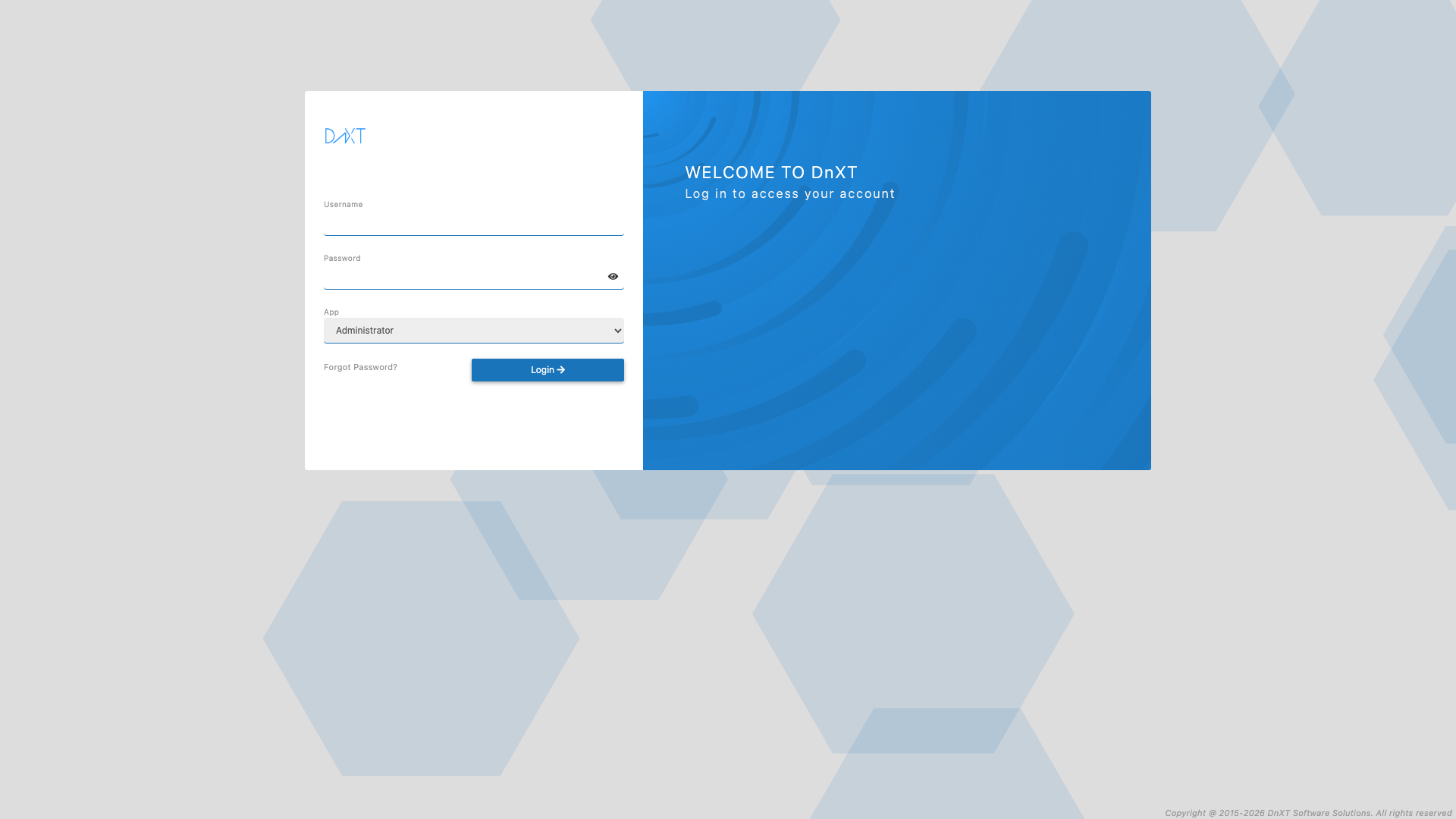
- Open your web browser (Google Chrome recommended) and navigate to the URL provided by your organization — for example,
https://your-company.dnxtsolutions.com/Publisher - On the login screen, enter your Username and Password
- Click the Login button or press Enter
Password Visibility Toggle #
Click the eye icon (Show password) next to the password field to temporarily reveal your password. Click it again to hide it.
Forgot Password #
If you’ve forgotten your password:
- Click the Forgot Password link below the login form
- Enter your Username in the dialog that appears
- Click Submit — your login credentials will be emailed to the address associated with your account
Managing Your Account #
Once logged in, you can access your account settings at any time:
- Click your username in the top-right corner of the screen, or click the user icon
- Select My Account from the dropdown menu
The My Account panel opens at the bottom of the screen with two tabs: Profile and Settings.
Profile Tab #
The Profile tab displays your personal information and authentication details.
Personal Information #
You can edit the following fields:
- First Name
- Last Name
- Email ID
To edit a field, click the pencil icon next to it. The field becomes editable. Make your changes and click Save. To undo your change before saving, click the undo icon.
Authentication Details #
For local user accounts (not SSO), the Profile tab also shows:
- Username — Your login name (read-only)
- Password Expiration — A progress bar showing how many days remain until your password expires
- Last Login — The date and time of your most recent login
Changing Your Password #
If your account uses local authentication (not Single Sign-On):
- Open My Account > Profile
- In the Authentication Details section, click “Do you want to change your password?”
- Enter your New Password
- Re-enter it in the Confirm Password field
- The password policy checklist will update in real-time — all criteria must be met (green checkmarks)
- Click Save when all criteria are satisfied
Password policy requirements are set by your administrator and may include:
- Minimum password length
- Uppercase and lowercase letters
- At least one number
- Special characters
- Starting with a specific case
Settings Tab #
Click the Settings tab (gear icon) in the My Account panel to configure your personal preferences:
| Setting | Description |
|---|---|
| Hide labels for main menu | Collapses the left sidebar to show only icons, giving more workspace area |
| Show document details on mouse hover under TOC | When enabled, hovering over a document in the TOC tree shows a tooltip with document properties |
| Open links in same tab | When following hyperlinks between documents, open them in the current tab instead of a new tab |
| Default Dossier Library as Landing Page | Skip the Dashboard and go directly to the Dossier Library when you log in |
After changing any setting, click Save to apply your preferences.
Logging Out #
To sign out of DnXT:
- Click your username or the user icon in the top-right corner
- Click Logout
You will be returned to the login screen. Your session cookie is cleared, so you won’t be auto-logged in next time.
Switching Between Applications #
If your organization has multiple DnXT applications (Publisher, Reviewer, Admin), you can switch between them without logging in again:
- Click your username in the top-right corner
- The dropdown shows links to other available applications (e.g., Reviewer, Admin)
- Click the application name — it opens in a new tab with your session preserved
FAQ #
My session keeps expiring. What’s the timeout? #
DnXT sessions expire after 15 minutes of inactivity. If your session expires, you’ll be redirected to the login screen. Any unsaved work may be lost, so save frequently.
I’m getting “Invalid credentials” but my password is correct. #
Check that you’re using the correct username (not your email address, unless your admin configured it that way). Also verify you don’t have Caps Lock enabled. If the problem persists, contact your administrator — your account may be locked after too many failed attempts.
Can I use Single Sign-On (SSO)? #
Yes, if your administrator has configured SSO in the SSO and Authentication settings. When SSO is enabled, you’ll be redirected to your organization’s identity provider instead of seeing the DnXT login form.


