DnXT Reviewer is a web-based application for regulatory professionals who need to review, annotate, and manage eCTD (electronic Common Technical Document) submissions. Whether you are reviewing an IND, NDA, or any regulatory dossier, Reviewer gives you a structured workspace to browse documents, add annotations, track submission history, and generate reports.
This guide walks you through your first session — from logging in to opening your first dossier.
System Requirements #
| Requirement | Details |
|---|---|
| Browser | Google Chrome (recommended), Microsoft Edge, or Firefox — latest version |
| Screen | 1440 x 900 or higher recommended for the three-panel viewer |
| Network | Stable internet connection (HTTPS to *.dnxtcloud.com) |
| Credentials | Username, password, and tenant name provided by your administrator |
How to Log In #
DnXT Reviewer — Dashboard after login
DnXT uses a two-step login form. Here is exactly what you will see and do:
- Open your browser and go to login.dnxtcloud.com.
- In the Username field, type your username in the format
yourname@YourTenantName(for example,jsmith@Acme). Your administrator will tell you your tenant name. - Click the Next button. The system verifies your tenant and loads your available modules. Wait a moment for the password field to appear.
- Type your password in the Password field that appears.
- In the Module dropdown that appears, select Reviewer.
- Click Login. You will be redirected to the Reviewer Dashboard.
@TenantName suffix. Without it, the system cannot identify your tenant.Your First Look: The Reviewer Interface #
After logging in, you land on the Dashboard. Here is what you will see:
Sidebar Menu (Left Side) #
The sidebar is your primary navigation. These are the menu items you will use most often:
| Menu Item | Icon | What It Does |
|---|---|---|
| Dashboard | Speedometer | Your home page — shows pending tasks, quick stats, and intelligence charts |
| Dossier Library | Grid | Browse all imported dossiers (applications) in tile or list view |
| Global Search | Magnifying glass | Search across all documents in all dossiers by keyword, phrase, or filter |
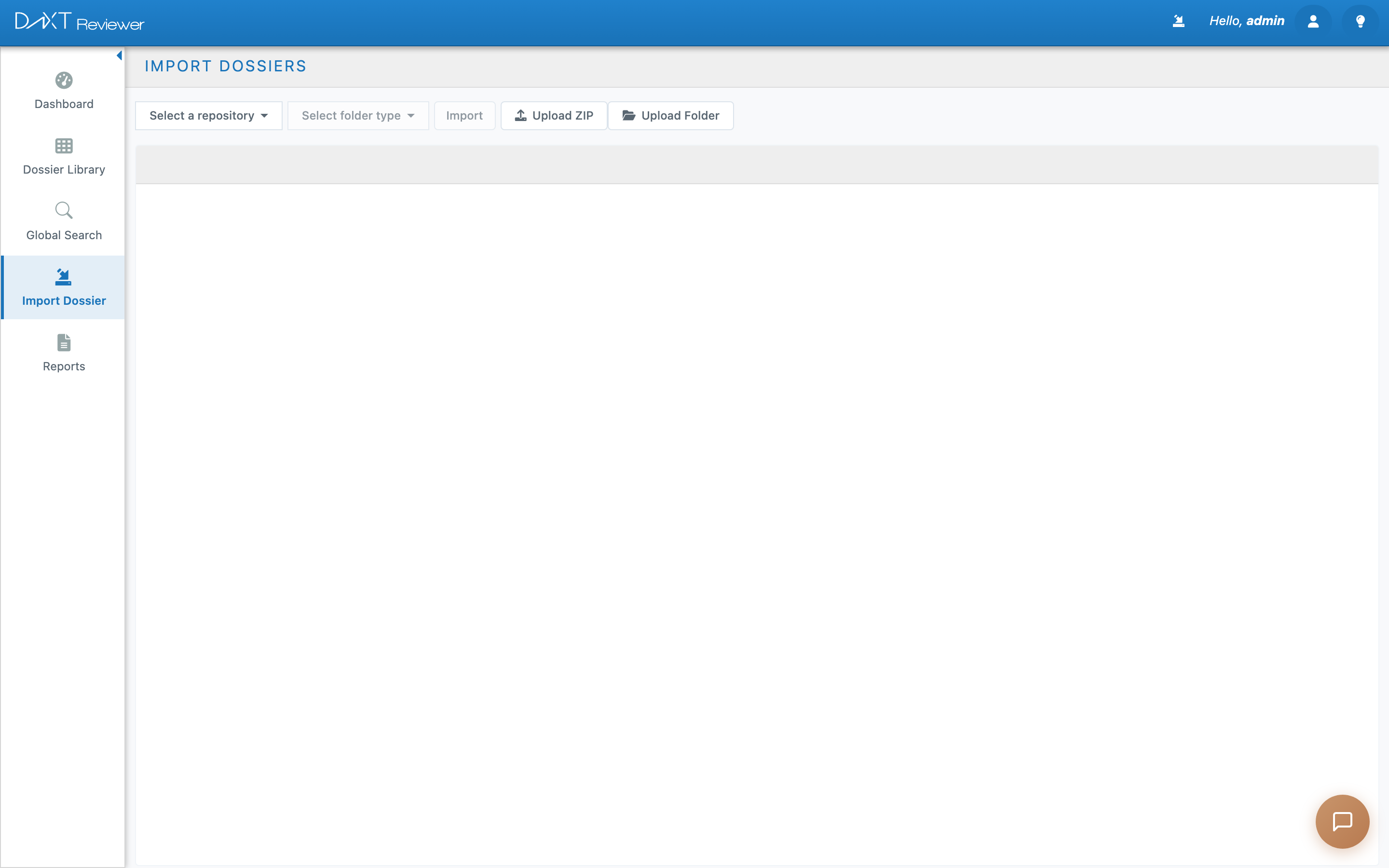
| Import Dossier | Import arrow | Import new eCTD submissions from a configured repository or upload a ZIP/folder |
| Reports | Document | Access Chronology, Labeling History, Specification, Correspondence, and Clinical reports |
| Repositories | Folder | Configure file system or Veeva Vault connections (admin only) |
Header Bar (Top) #
The top-right corner has three controls you should know about:
| Control | What It Does |
|---|---|
| Import History (import icon) | Shows your recent imports and their status (Successful, Warning, Failed, In Progress). Click to see details. |
| User Profile (person icon) | Shows your name, role, and login name. Use this to confirm you are logged into the correct tenant. |
| Help (lightbulb icon) | Links to this help documentation, a support portal, and the About dialog (shows version number). |
What Should I Do First? #
If this is your first time using Reviewer, follow this sequence:
- Check the Dashboard. Look at your pending approvals and tasks. If your team has already imported dossiers, you may have work waiting.
- Open the Dossier Library. Click Dossier Library in the sidebar to see what submissions are available for review.
- Open a dossier. Double-click any dossier tile to open its Table of Contents (TOC) view. This is where you will spend most of your time.
- Browse the TOC tree. Expand folders in the left panel (M1 through M5) and click a document to view it in the right panel.
- Try adding an annotation. While viewing a document, select text and use the annotation toolbar to leave a note. This is how you flag items for your team.
Logging Out #
To log out, click the user icon in the top-right corner and select Logout. Your session automatically expires after 15 minutes of inactivity.
Troubleshooting #
| Problem | Solution |
|---|---|
| Password field does not appear | Make sure your username includes @TenantName. Click Next, not Login. |
| Module dropdown is empty | Your account does not have access to any modules. Contact your administrator. |
| “Reviewer” not in module list | Your admin has not granted you Reviewer access. Ask them to assign the Reviewer module to your role. |
| Page loads but sidebar is blank | Try a hard refresh (Ctrl+Shift+R on Windows, Cmd+Shift+R on Mac). If the problem persists, clear your browser cache. |
| Session expired unexpectedly | Sessions time out after 15 minutes of inactivity. Log in again. Your work (annotations, imports) is saved automatically. |
Frequently Asked Questions #
Can I use Reviewer on a tablet or phone?
Reviewer is optimized for desktop browsers. The three-panel TOC viewer requires a screen width of at least 1280px. Tablets in landscape mode may work, but phones are not supported.
Can I be logged into Reviewer and Publisher at the same time?
Yes. DnXT uses shared cookies across modules, so you can have Reviewer, Publisher, and Admin open in separate tabs simultaneously.
What is the difference between Reviewer and Publisher?
Reviewer is for reading and annotating submitted dossiers. Publisher is for building and publishing new eCTD submissions. Most regulatory teams use both — Publisher to create submissions, and Reviewer to inspect them.