On This Page
Before you can review any submission in Reviewer, it must be imported. Importing copies the dossier’s eCTD folder structure and documents into Reviewer so you can browse, annotate, and report on them.
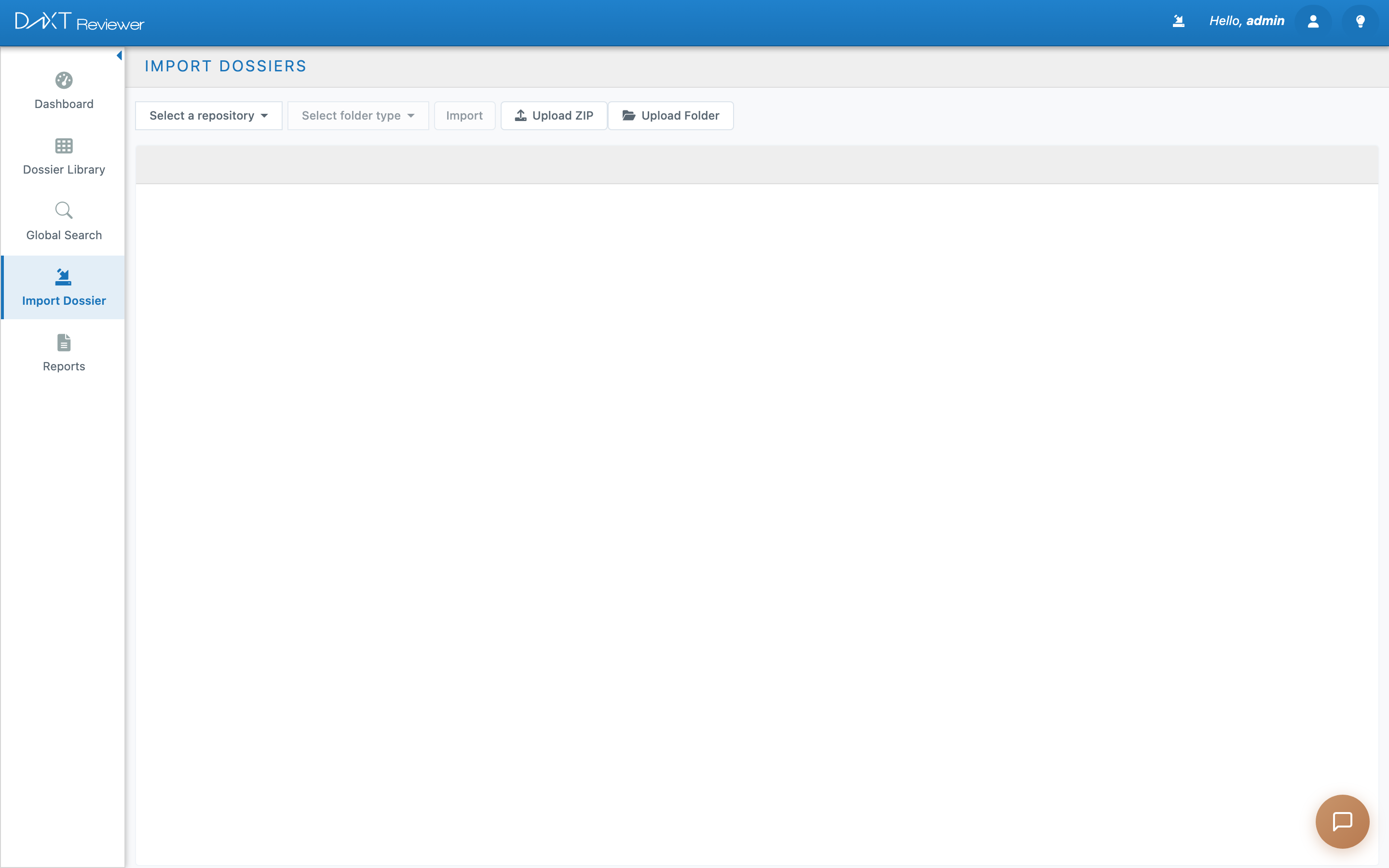
Import Dossier page — repository and folder selection
Before You Start #
You need two things before you can import:
- A configured repository. Your administrator must set up at least one repository under Repositories in the sidebar. This tells Reviewer where to find the dossier files (a shared filesystem path or a Veeva Vault connection).
- Import permissions. Your role must have the Import Dossier permission enabled. If you do not see “Import Dossier” in the sidebar, contact your administrator.
How to Import from a Repository #
Click Import Dossier in the sidebar. Then follow these steps:
- Select a repository. Click the Select a repository dropdown at the top. Choose the repository that contains your dossier files. If only one repository is configured, it may be pre-selected.
- Select a folder type. Click Select folder type and choose one of two options:
- eCTD — For standard eCTD-structured submissions (folders named like
0000,0001, etc., with anindex.xmlbackbone file). This is the most common format. - Folders — For non-eCTD folder structures. Use this when your files are organized in a custom folder hierarchy rather than standard eCTD sequences.
- eCTD — For standard eCTD-structured submissions (folders named like
- Browse to your dossier. The file browser shows the repository contents. Double-click folders to navigate deeper. Use the breadcrumb trail at the top to go back to parent folders, or click the back arrow.
- Select the dossier(s) to import. Click on one or more dossier folders to select them. Selected folders are highlighted. To select multiple, hold Ctrl (Windows) or Cmd (Mac) while clicking.
- Click Import. The Import button (top-left) activates once you have a selection. Click it to begin the import.
- Monitor progress. A progress indicator shows the import status. Large dossiers with hundreds of documents may take several minutes. You can continue using Reviewer while the import runs in the background.
Tip: After the import finishes, go to the Dossier Library to find your newly imported dossier. It appears at the top of the “All Dossiers” view.
Important: If a dossier was already imported previously, Reviewer detects this and may prompt you to update the existing dossier rather than creating a duplicate. Choose “Update” to add the new sequence to the existing dossier.
Understanding eCTD Structure #
When you import an eCTD dossier, Reviewer reads the index.xml backbone file to build the Table of Contents (TOC). The TOC organizes documents into five modules:
| Module | Name | Contents |
|---|---|---|
| M1 | Administrative | Cover letters, forms, labeling, correspondence |
| M2 | Summaries | Overall summary, quality summary, nonclinical/clinical overviews |
| M3 | Quality | Drug substance, drug product, manufacturing, stability data |
| M4 | Nonclinical | Pharmacology, pharmacokinetics, toxicology studies |
| M5 | Clinical | Clinical study reports, efficacy/safety data |
Checking Import Status #
To check the status of recent imports, click the import history icon (import arrow) in the top-right header bar. This shows a list of your recent imports with status indicators:
| Status | Meaning |
|---|---|
| Successful | Import completed without errors. Dossier is ready for review. |
| Warning | Import completed but some files had issues (missing files, format problems). The dossier is importable but may be incomplete. |
| Failed | Import could not complete. Check the error message for details. |
| In Progress | Import is still running. Wait for it to finish. |
Troubleshooting Import Issues #
| Problem | Cause | Solution |
|---|---|---|
| No repositories in dropdown | No repositories configured | Ask your admin to set up a repository under Repositories |
| Folder browser is empty | Repository path is incorrect or inaccessible | Ask your admin to verify the repository path and permissions |
| Import fails immediately | eCTD structure is invalid or missing index.xml |
Check that the source folder has a valid eCTD structure with an index.xml file |
| Import succeeds but dossier is missing documents | Some referenced files are missing from the source | Check the import warnings in the import history panel |