The Dashboard is the first page you see after logging into Reviewer. It is designed to show you what needs your attention — pending tasks, recent activity, and intelligence about your regulatory portfolio.
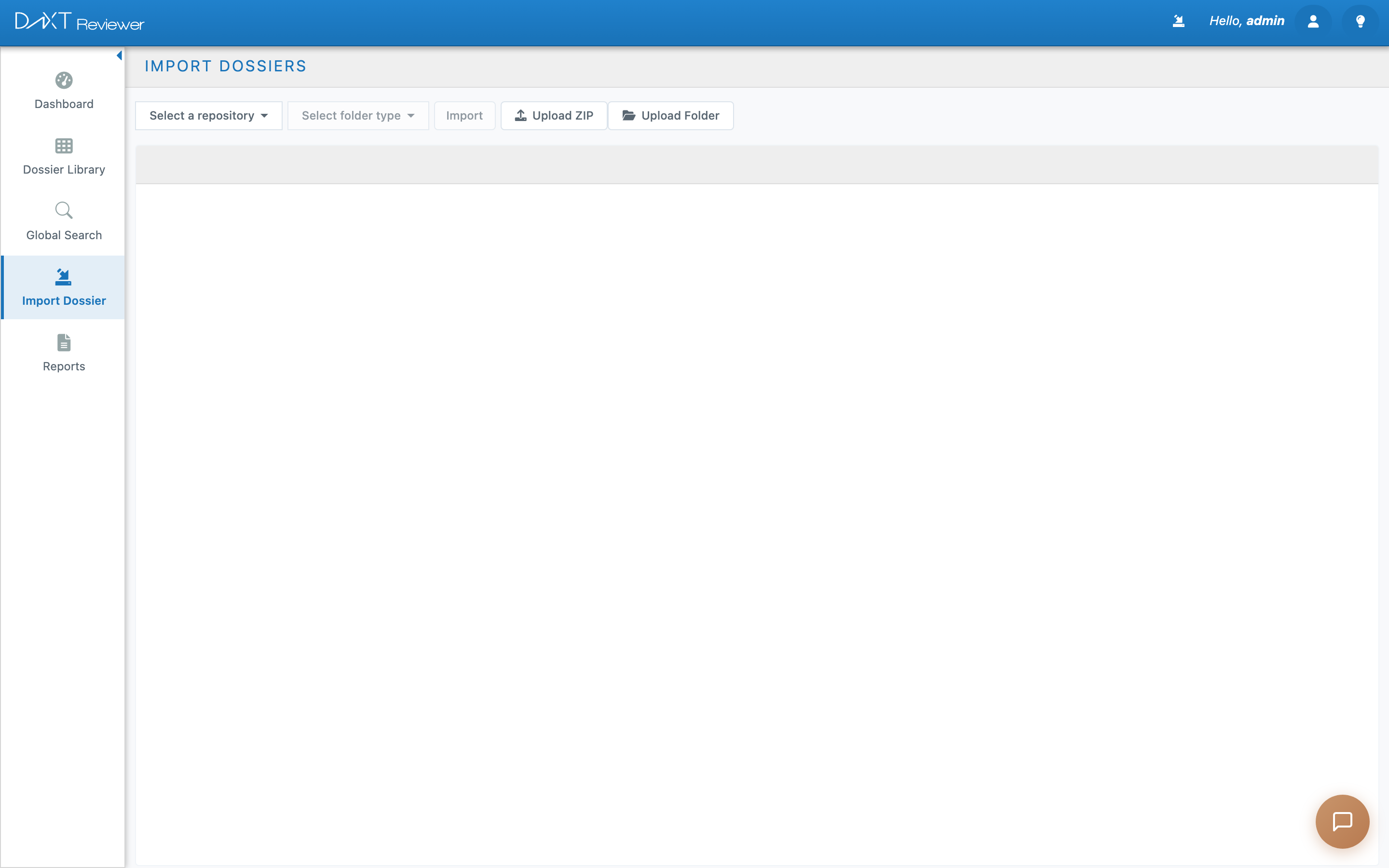
Reviewer Dashboard — Tasks and Intelligence tabs
Dashboard Tabs #
The Dashboard has two tabs at the top: Tasks and Intelligence.
Tasks Tab #
This is your daily worklist. It opens by default when you log in.
Welcome Banner #
At the top, you will see a greeting like “Good morning, Sarah! Here’s what needs your attention today.” If your organization uses the Planner module, an Open Planner button also appears here.
Quick Stats Cards #
Four cards show your workload at a glance:
| Card | What It Shows | What to Do |
|---|---|---|
| Pending Approvals | Number of items waiting for your sign-off or review decision | Click the card to jump directly to items needing your approval |
| My Tasks | Number of open tasks assigned to you (annotations, reviews) | Click to see your task list filtered to your assignments |
| Needs Attention | Items flagged as urgent or overdue | Prioritize these — they are either past due or flagged by a colleague |
| Completed Today | Tasks you have closed today | Use this as a progress tracker; the count resets daily |
My Tasks Panel #
Below the stats cards, the My Tasks panel has two sub-tabs:
Annotations — Shows annotations assigned to you across all dossiers. Each entry shows the annotation text, which document it is on, who created it, and its status (Open, Pending Review, Resolved). Click any annotation to jump directly to the document and see it in context.
Links — Shows hyperlink review tasks. When a colleague flags a link for verification, it appears here. Click to open the relevant document.
Intelligence Tab #
The Intelligence tab gives you a portfolio-level view of your regulatory data. This is useful for managers and senior reviewers who need to track trends across multiple applications.
Charts and Visualizations #
| Chart | What It Shows |
|---|---|
| Submission Trend (line chart) | Number of submissions received over time — helps spot seasonal patterns or deadline clusters |
| Applications by Type (bar chart) | Breakdown by application type (IND, NDA, BLA, etc.) — shows portfolio composition |
| Submissions by Status (doughnut chart) | How many submissions are in Draft, In Review, Approved, or Published status |
| Dossier Count by Region (map) | Geographic distribution of your dossiers — useful for global regulatory teams |
| Submission Calendar | Calendar view of submission dates and planned activities |
| Recent Activity Feed | Timeline of recent imports, annotations, and status changes across all dossiers |
Daily Workflow: How to Use the Dashboard #
Here is a recommended daily workflow for using the Dashboard effectively:
- Check “Needs Attention” first. These are your urgent items. Click the card and work through them.
- Process Pending Approvals. Review and resolve any items waiting for your sign-off.
- Review My Tasks annotations. Click into each annotation, review the flagged content, and update the status (resolve, reassign, or add a reply).
- Glance at Intelligence. Switch to the Intelligence tab weekly to check submission trends and status breakdowns.