Getting Started with DnXT Publisher #
DnXT Publisher is a comprehensive electronic Common Technical Document (eCTD) authoring and publishing platform designed for regulatory affairs professionals. Publisher enables teams to create, manage, validate, and publish regulatory submissions across multiple global regions from a single unified interface. Whether you are assembling a new drug application for the US FDA, preparing a variation for the EU EMA, or coordinating a simultaneous multi-region submission strategy, Publisher provides the tools you need to work efficiently and accurately.
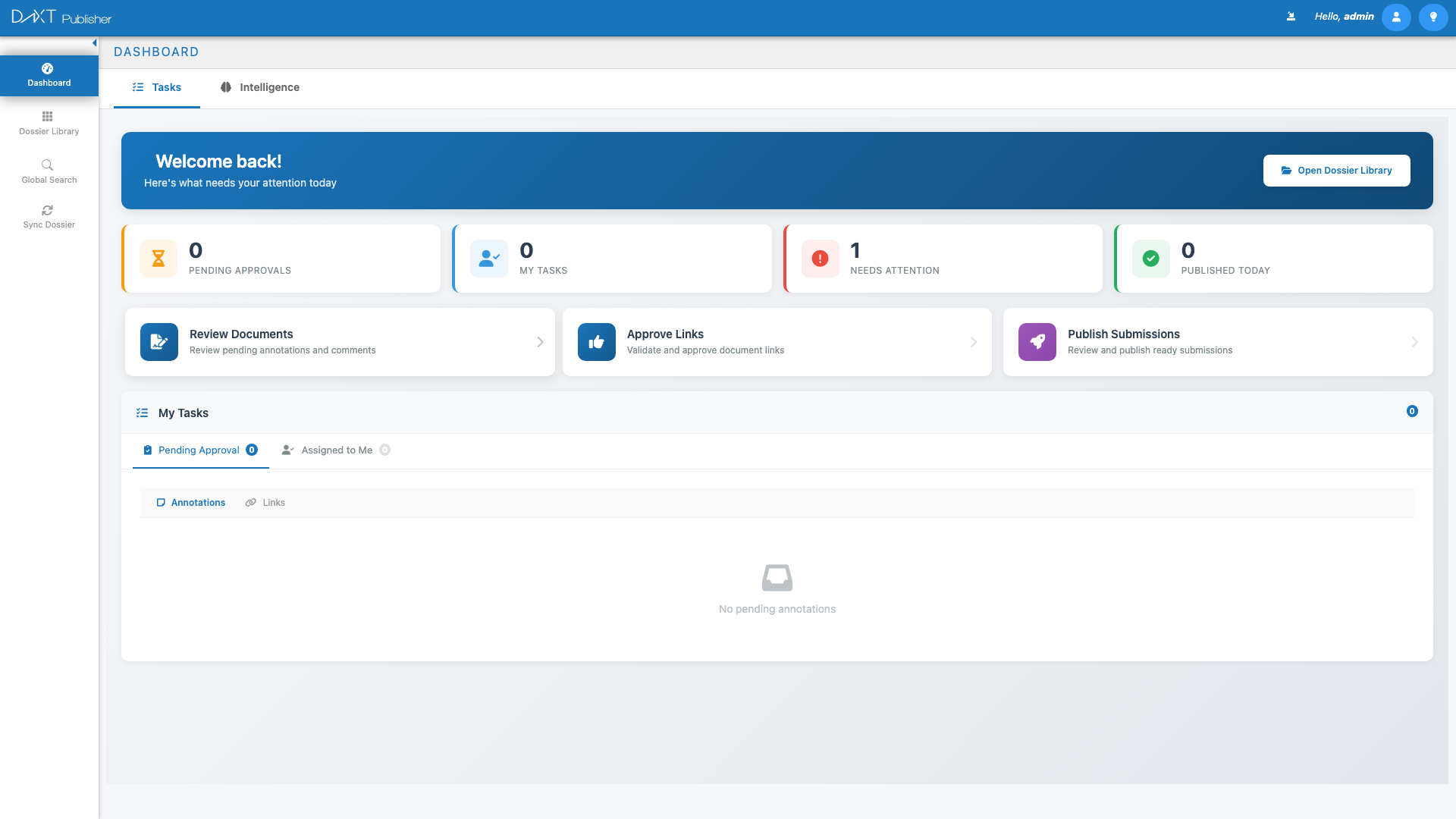
This guide walks you through accessing Publisher for the first time, understanding the main workspace areas, and taking your first steps toward productive submission authoring.
What Is DnXT Publisher? #
DnXT Publisher is one of two primary modules in the DnXT platform. While DnXT Reviewer focuses on reviewing and annotating regulatory documents received from health authorities or partners, DnXT Publisher is the authoring counterpart — purpose-built for assembling, validating, and publishing eCTD-format submissions.
Publisher supports the full submission lifecycle, from initial dossier planning through document placement, hyperlink management, validation, and final publishing output. It is built around the ICH eCTD specification and supports region-specific requirements for the United States (US), European Union (EU), Canada (CA), Japan (JP), Australia (AU), South Africa (ZA), Switzerland (CH), Gulf Cooperation Council (GCC), Thailand (TH), Singapore (SG), Croatia (HR), and other regions.
Key Capabilities #
| Capability | Description |
|---|---|
| Dossier Management | Create and organize dossiers by region, country, and product. Track multiple submissions within each dossier. |
| TOC Editor | A split-panel Table of Contents editor for placing documents into the eCTD structure, managing lifecycle operations, and viewing documents in context. |
| Submission Planning | Plan multi-region submissions with a spreadsheet-based planner, assign documents across regions, and coordinate timelines. |
| Template Library | Create and manage reusable TOC templates based on regional requirements to accelerate dossier setup. |
| Global Search | Search across all documents with faceted filters, AI-powered answers, and direct navigation to search results within the TOC. |
| Validation & Publishing | Run eCTD validation checks, resolve errors and warnings, and publish submission-ready output packages. |
| Reviewer Sync | Import dossiers from DnXT Reviewer to use received submissions as the basis for new authoring work. |
Accessing DnXT Publisher #
DnXT Publisher is accessed through a web browser. Your organization’s administrator will provide you with the URL, your username, and your initial password. Publisher supports modern versions of Google Chrome, Microsoft Edge, Mozilla Firefox, and Apple Safari.
Step-by-Step: Logging In #
- Open your web browser and navigate to your organization’s DnXT Publisher URL (for example,
https://yourcompany.dnxtsolutions.com). - On the login screen, enter your Username and Password.
- Click the Sign In button.
- If your organization uses multi-factor authentication, complete the additional verification step.
- You will be taken to the Dashboard, which is your home screen in Publisher.
Understanding the Main Navigation #
After logging in, you will see the Publisher interface organized around a left-side navigation panel and a main content area. The navigation provides access to all major workspaces within Publisher.
Navigation Areas #
| Navigation Item | Purpose |
|---|---|
| Dashboard | Your home screen with task summaries, quick actions, and publishing intelligence analytics. |
| Dossier Library | Browse, search, and manage all dossiers and submissions. Create new dossiers here. |
| Plan Library | Create and manage submission plans for multi-region coordination. |
| Template Library | Browse and create reusable TOC templates for accelerating dossier setup. |
| Document Library | Global search across all documents in all dossiers with faceted filtering and AI-powered answers. |
| Sync Dossier | Import dossiers and submissions from DnXT Reviewer into Publisher. |
Your First Steps in Publisher #
If you are new to Publisher, we recommend following this sequence to get oriented and productive quickly:
Step 1: Explore the Dashboard #
The Dashboard is your starting point. It shows two tabs: Tasks and Intelligence. The Tasks tab provides a welcome message, quick statistics (Pending Approvals, My Tasks, Needs Attention, Published Today), and quick action cards for common workflows like reviewing documents, approving links, and publishing submissions. The Intelligence tab offers analytics and visualizations about your publishing activity. Spend a few minutes clicking through both tabs to understand what information is available at a glance.
Step 2: Browse the Dossier Library #
Navigate to Dashboard > Dossier Library (or click the Open Dossier Library button on the Dashboard). The Dossier Library is where all your dossiers live. You will see tabs for All Dossiers, All Submissions, Recently Viewed Dossiers, Recently Viewed Submissions, Favorites, and Regulatory Activity. If your organization already has dossiers, browse through them. Toggle between Tile View and List View to see which display you prefer.
Step 3: Create Your First Dossier #
If you have permissions, click the Create Dossier button in the Dossier Library toolbar. You will be prompted to select a Region, Country, and Product. This creates a new dossier container where you can add submissions and documents. See Creating a New Dossier Plan for a full walkthrough.
Step 4: Open the TOC Editor #
Double-click any dossier or submission in the Dossier Library to open the TOC Editor — the main authoring workspace. This split-panel view shows the eCTD table of contents tree on the left and document properties or a document viewer on the right. This is where you will spend most of your time placing documents, managing lifecycle operations, and preparing submissions for publishing.
Step 5: Run Your First Validation #
Once you have documents placed in the TOC, use Actions > Validate Submission in the TOC Editor to check your submission against eCTD compliance rules. Fix any errors and re-validate until you have a clean report.
System Requirements #
DnXT Publisher is a web-based application. No software installation is required on your local machine. The following browsers are supported:
- Google Chrome (latest two major versions)
- Microsoft Edge (latest two major versions)
- Mozilla Firefox (latest two major versions)
- Apple Safari (latest two major versions)
For the best experience, we recommend using Google Chrome with a screen resolution of 1920×1080 or higher. The TOC Editor’s split-panel layout benefits from wider screens.
User Roles and Permissions #
Your experience in Publisher may vary depending on the role assigned to you by your administrator. Common roles include:
| Role | Typical Permissions |
|---|---|
| Publisher Admin | Full access to all features including template creation, user management, and system configuration. |
| Publisher | Create and manage dossiers, place documents, run validations, publish submissions. |
| Reviewer | View dossiers and documents, add annotations and comments, approve links and documents. |
| Viewer | Read-only access to dossiers and documents. |
Understanding eCTD Basics #
Publisher is built around the electronic Common Technical Document (eCTD) format, which is the internationally agreed-upon standard for submitting regulatory documents to health authorities. The eCTD organizes documents into five modules:
- Module 1 — Regional Administrative Information (region-specific, not harmonized)
- Module 2 — Common Technical Document Summaries (quality, nonclinical, clinical overviews and summaries)
- Module 3 — Quality (drug substance and drug product manufacturing and controls)
- Module 4 — Nonclinical Study Reports (pharmacology, pharmacokinetics, toxicology)
- Module 5 — Clinical Study Reports (clinical pharmacology, efficacy, safety)
Each submission within a dossier is called a “sequence” and builds upon previous sequences through lifecycle operations (new documents, replacements, appends, and deletes). Publisher manages this lifecycle automatically through its TOC Editor.
Keyboard Shortcuts #
Publisher supports several keyboard shortcuts to accelerate common tasks:
| Shortcut | Action |
|---|---|
Ctrl + S / Cmd + S |
Save current changes |
Ctrl + F / Cmd + F |
Open search within the current view |
Ctrl + Click |
Select multiple items in list views |
Escape |
Close the current overlay panel or dialog |
Frequently Asked Questions #
What browsers are supported? #
Publisher supports the latest two major versions of Chrome, Edge, Firefox, and Safari. Chrome is recommended for the best experience.
Can I work on multiple dossiers at the same time? #
Yes. You can open Publisher in multiple browser tabs, each navigated to a different dossier or submission. The Recently Viewed tabs in the Dossier Library help you keep track of what you have been working on.
Is my work saved automatically? #
Many operations in Publisher save immediately (such as placing a document or changing a lifecycle operation). However, for text fields like dossier names or contact information, you should confirm your changes by clicking the appropriate save or confirm button.
How do I switch between Publisher and Reviewer? #
Use the module switcher in the top navigation area to switch between DnXT Publisher and DnXT Reviewer. Both modules share the same login credentials and user session.
What if I encounter an error? #
If you encounter an unexpected error, try refreshing your browser. If the issue persists, note the error message and contact your system administrator or DnXT support.
Related Articles #
- Dashboard Overview — Learn about the Tasks and Intelligence tabs on your home screen.
- Dossier Library: Managing Dossiers — Browse, search, filter, and organize your dossiers.
- Creating a New Dossier Plan — Step-by-step guide to creating your first dossier.
- Submission Authoring with the TOC Editor — Master the main authoring workspace.
- Template Library — Accelerate dossier setup with reusable templates.


