Syncing Dossiers from Reviewer #
DnXT Publisher’s Sync Dossier feature enables you to import dossiers and submissions from DnXT Reviewer into Publisher. This is a critical workflow when your organization receives submissions from health authorities or partners in Reviewer and needs to use those received documents as the basis for new authoring work in Publisher. The sync process copies the dossier structure, documents, and metadata from Reviewer into Publisher, creating a local working copy that you can then edit, augment, and publish.
When to Use Sync #
The Sync Dossier feature is used in several common regulatory scenarios:
- Building on received submissions — When you receive a health authority’s response or a partner’s submission in Reviewer and need to create a follow-up submission (amendment, supplement, response) in Publisher.
- Migrating dossiers to Publisher — When dossiers exist in Reviewer and need to be brought into Publisher for ongoing management.
- Creating reference copies — When you need access to Reviewer dossier content within the Publisher workspace for reference during authoring.
- Cross-team collaboration — When review teams working in Reviewer need to hand off content to publishing teams working in Publisher.
Accessing Sync Dossier #
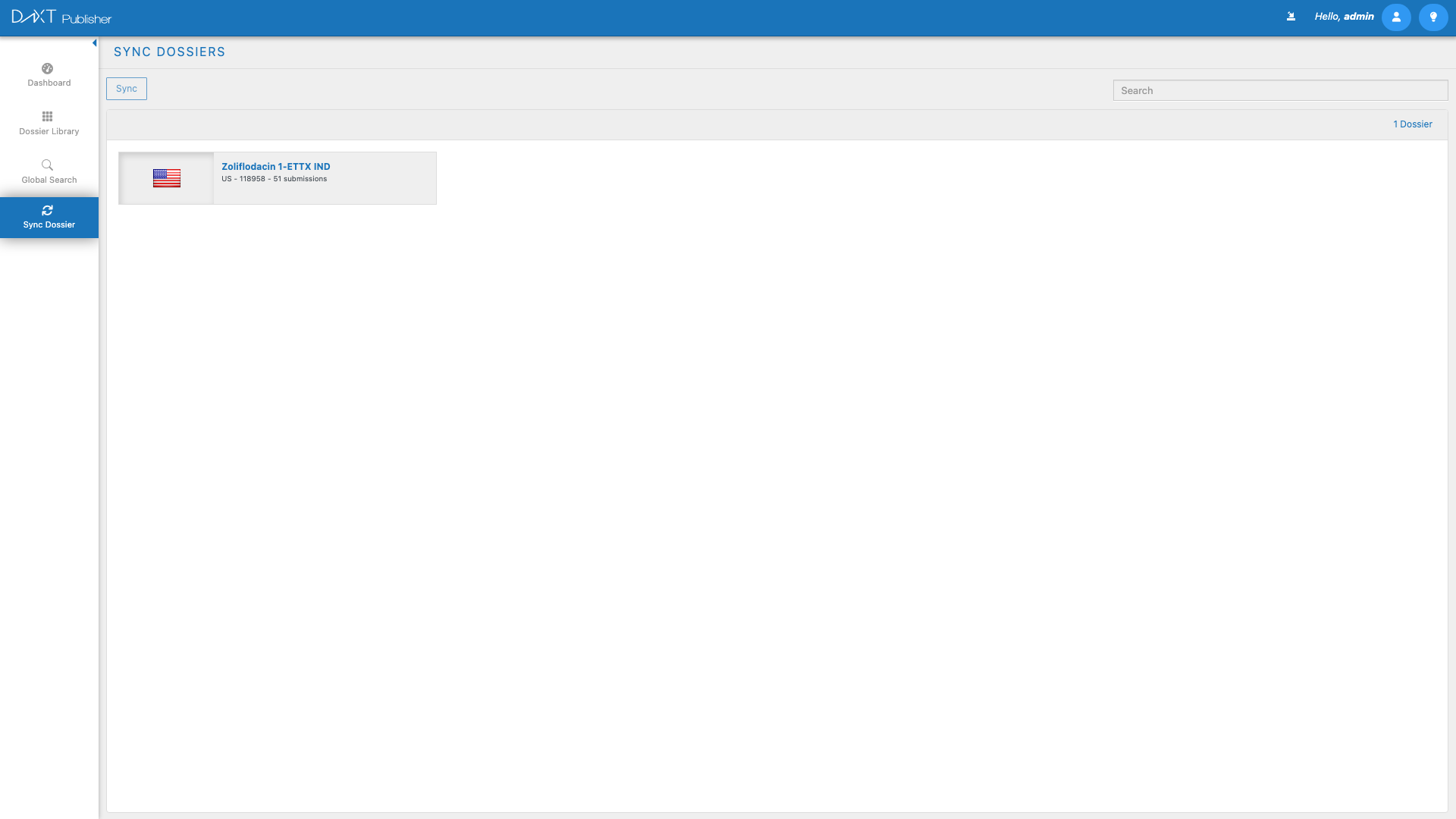
Click Sync Dossier in the left navigation panel from any screen in Publisher. The Sync Dossier view opens showing available source dossiers from Reviewer.
Browsing Source Dossiers #
The main area of the Sync Dossier view displays dossiers available in DnXT Reviewer. These are shown in a tile view, similar to the Dossier Library’s tile format. Each tile shows the dossier name, region, product, and the number of available submissions.
Navigating into Submissions #
To see the individual submissions within a Reviewer dossier, double-click the dossier tile. The view drills into the dossier, showing all its submissions as individual tiles or list items. You can then select specific submissions for syncing rather than importing the entire dossier.
Selecting Items for Sync #
Select the dossiers or submissions you want to import by clicking on them. Selection works as follows:
- Single click — Selects or deselects a single item.
- Ctrl + Click — Adds or removes individual items from the selection.
- Right-click Context Menu — Provides additional options:
- Select All — Selects all visible items.
- Deselect All — Clears all selections.
- Refresh — Reloads the list of available source dossiers from Reviewer.
Selected items are highlighted to indicate they are queued for sync.
Starting the Sync #
Once you have selected the items you want to import, click the Sync button in the toolbar. Publisher initiates the import process for all selected items.
Step-by-Step: Syncing Dossiers #
- Navigate to Sync Dossier from the left navigation panel.
- Browse the available source dossiers from Reviewer.
- Double-click a dossier to drill into its submissions (if you want to select specific sequences).
- Select the items you want to import by clicking them.
- Click the Sync button in the toolbar.
- The Import Progress panel appears, showing the status of each import operation.
- Wait for all imports to complete.
- Navigate to the Dossier Library to find the imported dossiers.
Import Progress Panel #
After clicking Sync, the Import Progress panel opens and displays the status of each import operation. Each selected dossier or submission is shown as a row with its own progress indicator.
Progress States #
| State | Icon/Color | Description |
|---|---|---|
| Queued | Grey | The item is in the queue waiting to begin syncing. |
| Syncing | Blue with animated progress bar | The item is actively being imported. The progress bar fills as the import proceeds. |
| Completed | Green with checkmark | The item has been successfully imported into Publisher. |
| Failed | Red with error icon | The import encountered an error. Click the error icon for details. |
Monitoring Progress #
The Import Progress panel shows progress bars for each item being imported. The bars fill from left to right as the import proceeds. For multi-submission imports, each submission within a dossier may have its own progress bar, allowing you to track granular progress.
After Sync Completes #
Once the sync operation completes successfully:
- The imported dossiers appear in the Dossier Library under the All Dossiers tab.
- The imported submissions appear under the All Submissions tab.
- All documents, TOC structure, and metadata from the Reviewer source are preserved in the imported copy.
- You can now open the imported dossier in the TOC Editor and begin authoring work — placing new documents, creating submissions, and building on the imported content.
Handling Sync Failures #
If a sync operation fails:
- Click the error icon on the failed item in the Import Progress panel to see the error details.
- Common failure reasons include network connectivity issues, insufficient permissions in Reviewer, or corrupted source data.
- Resolve the underlying issue (reconnect to the network, request permissions, etc.).
- Return to the Sync Dossier view and retry the failed item by selecting it again and clicking Sync.
If failures persist, contact your system administrator for assistance. The error message will contain technical details that can help diagnose the issue.
Sync vs. Manual Recreation #
| Approach | Pros | Cons |
|---|---|---|
| Sync from Reviewer | Fast, preserves all structure and content, maintains submission history | Imports everything (may include content you do not need) |
| Manual creation | Full control over structure, can start clean | Time-consuming, no automatic content import, must manually place documents |
Frequently Asked Questions #
Does syncing affect the source dossier in Reviewer? #
No. The sync operation creates a copy of the Reviewer dossier in Publisher. The original dossier in Reviewer is not modified in any way.
Can I sync the same dossier multiple times? #
Yes. If you sync a dossier that has already been imported, Publisher will update the existing copy with any new submissions or changes from Reviewer. It will not create duplicate dossiers.
How long does a sync take? #
Sync time depends on the size of the dossier — the number of submissions, documents, and total file size. A small dossier with a single submission may sync in under a minute, while a large dossier with dozens of submissions and thousands of documents may take several minutes.
Do I need Reviewer access to sync? #
You need appropriate permissions in both Reviewer (to read the source dossier) and Publisher (to create the imported copy). Contact your administrator if you cannot see source dossiers in the Sync view.
Can I select specific documents within a submission for sync? #
The current sync granularity is at the submission level. You can select specific submissions within a dossier, but you cannot select individual documents within a submission. The entire submission and its contents are synced as a unit.
Related Articles #
- Dossier Library: Managing Dossiers — Find and manage imported dossiers in the Library.
- Submission Authoring with the TOC Editor — Begin authoring work on synced dossiers.
- Creating a New Dossier Plan — Create new dossiers as an alternative to syncing.
- Getting Started with Publisher — Overview of all Publisher features.


