Overview #
The Correspondence Tracking report in DnXT Reviewer provides a complete record of all communications between your organization and health authorities throughout the lifecycle of a regulatory application. It tracks letters sent to and received from agencies, meeting records, questions and Requests for Information (RFIs), commitments, and reference documents. With AI-powered classification, visual timelines, and comprehensive filtering, this report ensures that no piece of correspondence falls through the cracks during the regulatory review and approval process.
Accessing Correspondence Tracking #
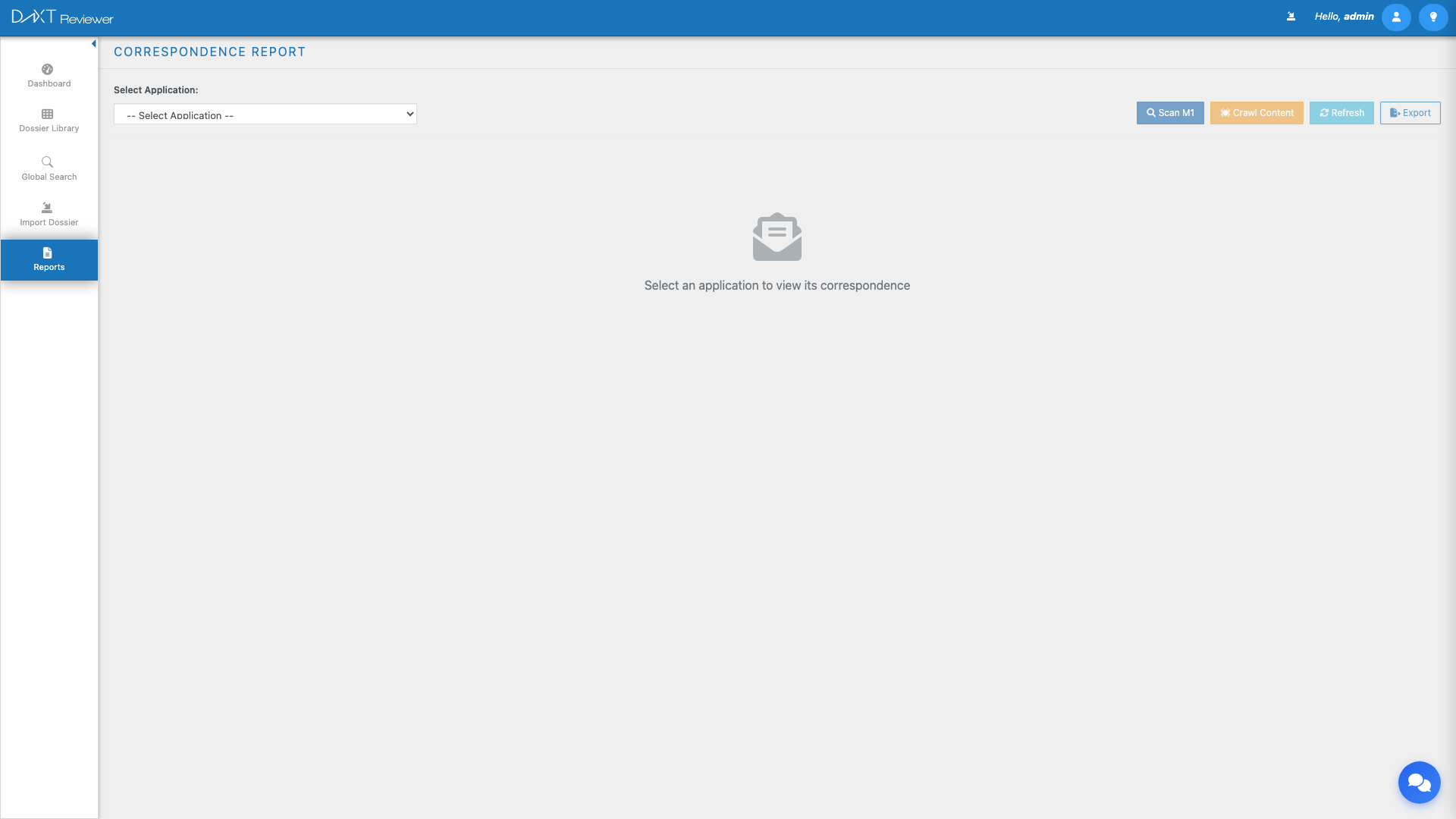
Navigate to Left Sidebar → Reports and click the Correspondence card to open the Correspondence Tracking report.
Report Toolbar #
The toolbar provides the following controls:
| Control | Description |
|---|---|
| Application Selector | Select which dossier (application) to display correspondence for |
| Scan M1 | Scans Module 1 content across all submissions to identify correspondence documents |
| Crawl Content | Performs deep content analysis of identified correspondence documents to extract dates, directions, types, and key information |
| Refresh | Reloads correspondence data from the server |
| Export | Downloads correspondence data as CSV or PDF |
Scan M1 vs. Crawl Content #
These two toolbar actions serve different purposes in the correspondence extraction pipeline:
- Scan M1 identifies correspondence documents by analyzing the eCTD Module 1 structure and document metadata. This is a lightweight operation that finds relevant documents without reading their content.
- Crawl Content performs a deeper analysis by actually reading the content of identified documents to extract dates, classify correspondence direction (to/from agency), identify meeting types, and extract questions and commitments. This operation takes longer but provides richer data.
Summary Cards #
Four summary cards provide an overview of the correspondence landscape:
| Card | Description |
|---|---|
| To Agency | Count of correspondence items sent from your organization to the health authority |
| From Agency | Count of correspondence items received from the health authority |
| Pending Response | Number of correspondence items awaiting a response (either from you or from the agency) |
| Meetings | Total count of meeting records (past and upcoming) |
Filters #
A comprehensive filter bar below the summary cards allows you to narrow the displayed correspondence:
| Filter | Description |
|---|---|
| Date Range | Filter by correspondence date (start and end date pickers) |
| Direction | Filter by direction: To Agency, From Agency, or Both |
| Type | Filter by correspondence type (Letter, Email, Meeting Minutes, RFI, etc.) |
| Status | Filter by status (Open, Responded, Closed, Pending) |
| Search | Free-text search across correspondence titles, descriptions, and content |
Eight Tabs #
The Correspondence report organizes data across eight specialized tabs:
Tab 1: All #
The default tab showing all correspondence items regardless of direction or type. Items are displayed in a table with columns for date, direction, type, subject, status, sequence, and AI classification. This tab provides the most comprehensive view of the entire correspondence record.
Tab 2: To Agency #
Filters the table to show only correspondence sent from your organization to the health authority. This includes cover letters, response letters, meeting requests, and submission transmittal letters.
Tab 3: From Agency #
Filters to show only correspondence received from the health authority. This includes acknowledgment letters, review letters, information requests, complete response letters, and approval letters.
Tab 4: Meetings #
The Meetings tab provides a dedicated view for managing meeting records. Each meeting entry includes:
- Meeting type (classified by FDA meeting category)
- Date of the meeting
- Subject and description
- Status (Requested, Scheduled, Completed, Cancelled)
- Attendees (if extracted from meeting minutes)
Meeting Type Classifications #
The Meetings tab supports the following FDA meeting type classifications:
| Meeting Type | Description |
|---|---|
| Type A | Meetings necessary for an otherwise stalled development program to proceed (30-day response) |
| Type B | Pre-IND, End-of-Phase 1, End-of-Phase 2, Pre-NDA/BLA meetings (60-day response) |
| Type C | All other meetings (75-day response) |
| Pre-IND | Meeting prior to IND submission |
| Pre-NDA | Meeting prior to NDA/BLA submission |
| End-of-Phase 2 | Meeting at the end of Phase 2 clinical trials |
| Advisory Committee | Advisory committee review meeting |
Adding and Editing Meetings #
You can manually add meeting records:
- Click the Add Meeting button on the Meetings tab.
- Fill in the meeting details: type, date, subject, description, and status.
- Click Save.
To edit an existing meeting, click the edit icon on the meeting row.
Tab 5: Timeline #
The Timeline tab presents all correspondence on a visual timeline. Entries are plotted chronologically with:
- Year dividers separating entries by calendar year
- Direction indicators distinguishing to-agency (left side) from from-agency (right side) items
- Color coding by correspondence type
- Hover details showing full subject, date, and classification on mouseover
- Click to expand for full correspondence details
Tab 6: Questions/RFIs #
The Questions/RFIs tab isolates all questions and Requests for Information received from or posed to the health authority. Each entry shows:
- Question text or RFI description
- Source document and date
- Response status (Pending, Responded, Overdue)
- Response date (if responded)
- Linked response document (if applicable)
Tab 7: Commitments #
The Commitments tab tracks all commitments made to health authorities during the regulatory process. Commitments may include post-marketing study obligations, labeling update promises, manufacturing change notifications, and other agreed-upon actions. Each commitment entry shows:
- Commitment description
- Source (meeting minutes, approval letter, etc.)
- Due date
- Status (Open, In Progress, Completed, Overdue)
Tab 8: References #
The References tab lists all documents that have been identified as reference materials in the correspondence. This includes documents cited in cover letters, reference numbers from agency communications, and linked background documents.
AI Classification #
DnXT Reviewer uses AI to automatically classify correspondence documents. When you run Crawl Content, the AI analyzes each document and assigns:
| Classification | Description |
|---|---|
| Direction | Whether the document is to the agency or from the agency |
| Type | The correspondence category (Letter, Meeting Minutes, RFI, Cover Letter, etc.) |
| Date | The correspondence date extracted from the document content |
| Confidence Score | A percentage indicating the AI’s certainty in its classification (displayed next to each entry) |
Each correspondence entry in the table displays its AI classification confidence score. High confidence scores (above 80%) indicate reliable classifications. Lower scores suggest the classification may need manual review.
Exporting Correspondence Data #
Click the Export button to download correspondence data. The export respects active filters and tab selection. The exported file includes:
- All correspondence metadata (dates, directions, types, subjects)
- AI classifications and confidence scores
- Meeting details and attendees
- Question/RFI status and responses
- Commitment tracking information
Frequently Asked Questions #
How does the system identify correspondence documents? #
The Scan M1 operation examines Module 1 of each submission sequence, where correspondence documents are typically located per eCTD standards. It identifies documents in correspondence-related sections (e.g., 1.2 Cover Letters, 1.3 Administrative Information) based on eCTD heading numbers and document classification.
Can I manually add correspondence entries? #
Yes, you can manually add meeting records through the Meetings tab. For other correspondence types, the entries are primarily populated through the Scan M1 and Crawl Content operations. Manual entry for general correspondence may be available depending on your system configuration.
What if the AI misclassifies a correspondence item? #
AI classifications are based on document content analysis and may occasionally be incorrect, especially for documents with ambiguous content. Check the confidence score: entries with low confidence are more likely to need correction. You can edit the classification by clicking on the entry and updating the direction, type, or other fields.
Can I track correspondence across multiple applications? #
The Correspondence report operates on one application at a time. To view correspondence for a different application, use the Application Selector dropdown. Cross-application correspondence tracking will be available in the future Analytics report.
How do I link a response to an RFI? #
When viewing the Questions/RFIs tab, click on an RFI entry to expand its details. You can link a response document by clicking the Link Response button and selecting the appropriate document from the submission sequences.
Are meeting minutes automatically extracted? #
When you run Crawl Content, the AI analyzes documents classified as meeting-related and extracts key information including meeting type, date, attendees (when listed), and action items. The quality of extraction depends on the formatting and clarity of the meeting minutes document.
Related Articles #
- Reports Overview — All available report types
- Chronology Report — Submission timeline and history
- Labeling History Report — Document version tracking
- Specification Dashboard — CMC specification tracking
- Reviewing Submissions with TOC — Viewing Module 1 correspondence documents in the TOC


