Overview #
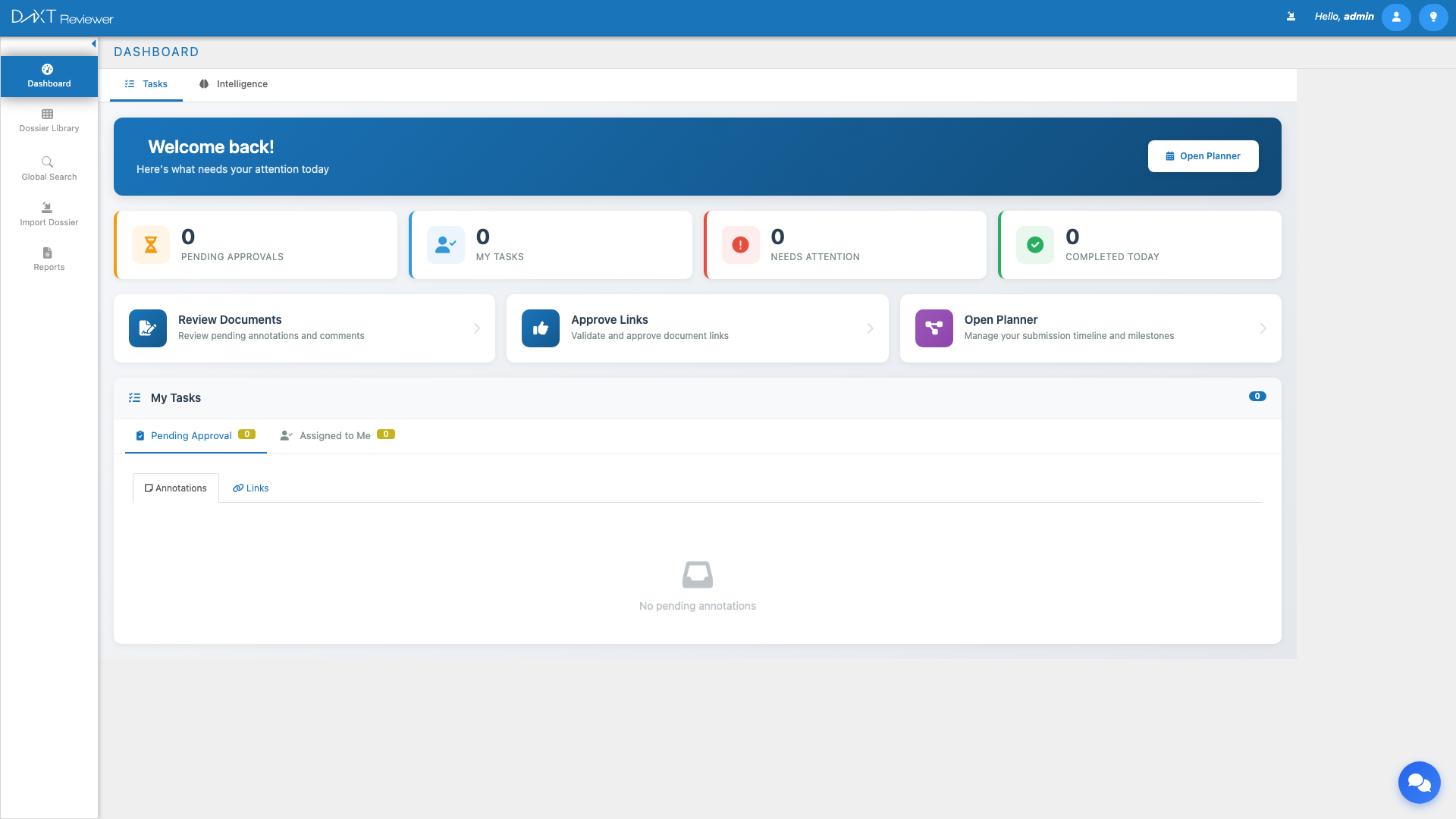
The DnXT Reviewer Dashboard is your central command center for regulatory review activities. It serves as the default landing page when you log in, providing immediate visibility into your pending tasks, team activity, and portfolio-level intelligence. The Dashboard is organized into two distinct tabs: Tasks and Intelligence, each designed to support different aspects of your daily workflow.
Accessing the Dashboard #
The Dashboard loads automatically when you log in to DnXT Reviewer. You can return to it at any time by:
- Clicking Dashboard in the left sidebar
- Clicking the DnXT logo in the header bar
Tasks Tab #
The Tasks tab is the default view and focuses on your personal workflow. It provides a welcome banner, summary statistics, quick-access actions, and a detailed task management panel.
Welcome Banner #
At the top of the Tasks tab, a personalized welcome banner greets you by name and provides context about your current workload. The banner includes an Open Planner button that launches the DnXT Planner application for submission planning activities.
Quick Stats Cards #
Below the welcome banner, four summary cards give you an at-a-glance view of your current workload:
| Card | Description |
|---|---|
| Pending Approvals | Number of annotations or links awaiting your approval |
| My Tasks | Total tasks currently assigned to you |
| Needs Attention | Items flagged as urgent or overdue |
| Completed Today | Number of tasks you have completed in the current day |
Quick Actions #
The Quick Actions section provides one-click shortcuts to the most common Reviewer workflows:
- Review Documents — Opens the Dossier Library so you can select a dossier and begin reviewing its TOC and documents.
- Approve Links — Navigates directly to the links that need your approval, filtered from the annotations panel.
- Open Planner — Launches the DnXT Planner application in a new window for submission planning and scheduling.
My Tasks Panel #
The My Tasks panel occupies the lower portion of the Tasks tab and provides a detailed view of all work items assigned to you. The panel is organized into two main categories:
Pending Approval #
This section lists all annotations and links that have been submitted for your approval. Each item shows the document name, submitter, date submitted, and current status. You can approve, reject, or request changes directly from this list.
Assigned to Me #
This section shows all tasks that have been assigned to you by other team members. Tasks are further organized into sub-tabs:
- Annotations — Review comments and notes assigned to you for action
- Links — Cross-document links assigned to you for verification or approval
Each task entry displays the associated document, the assigner, the date assigned, priority level, and a status indicator. You can click any task to navigate directly to the relevant document in the TOC viewer.
Intelligence Tab #
The Intelligence tab transforms the Dashboard into a regulatory analytics hub. It provides visualizations and insights drawn from your entire portfolio of imported dossiers, helping you understand trends, distributions, and patterns across your regulatory submissions.
To switch to the Intelligence tab, click the Intelligence tab label at the top of the Dashboard.
Submission Trend Chart #
A line or bar chart at the top of the Intelligence tab shows submission volume over time. This visualization helps you identify seasonal patterns, ramp-up periods before regulatory deadlines, and overall portfolio growth trends. You can hover over data points to see exact counts and dates.
Recent Activity Feed #
The Recent Activity feed provides a real-time log of actions across your Reviewer instance. This includes dossier imports, annotation additions, status changes, and report generations performed by all users. Each entry shows the user, action type, affected item, and timestamp.
Dossier Count by Region Map #
An interactive world map (powered by jVectorMap) displays the geographic distribution of your dossier portfolio. Regions are color-coded by the number of dossiers filed there, with darker shades indicating higher volumes. Hover over any country or region to see the exact dossier count.
Submissions by Region Chart #
A doughnut chart breaks down total submissions by regulatory region (e.g., US FDA, EU EMA, Health Canada, TGA Australia). This chart complements the geographic map by providing exact proportional data. Click any segment to filter the dashboard to that region.
Applications by Type Chart #
A bar chart categorizes all applications in your portfolio by type:
- NDA — New Drug Application
- BLA — Biologics License Application
- MAA — Marketing Authorization Application
- ANDA — Abbreviated New Drug Application
- Other — IND, IMPD, CTD, and other application types
Submissions by Status Chart #
A doughnut chart displays the distribution of submissions by their current status (e.g., Draft, Submitted, Approved, Withdrawn, Under Review). This gives you an immediate understanding of your portfolio’s regulatory pipeline health.
Auto-Generated Insights #
At the bottom of the Intelligence tab, Reviewer automatically generates text-based insights from your portfolio data. These insights may include observations such as:
- Submission volume trends (e.g., “Submissions increased 23% quarter-over-quarter”)
- Concentration alerts (e.g., “78% of submissions target a single region”)
- Activity patterns (e.g., “Most imports occur on Monday mornings”)
- Status distribution observations (e.g., “12 submissions have been in Draft status for over 90 days”)
Dashboard Navigation Shortcuts #
The Dashboard is designed as a hub that connects to every other module in Reviewer. Here is how each Dashboard element links to deeper functionality:
| Dashboard Element | Click Action | Destination |
|---|---|---|
| Quick Stats card | Filters My Tasks panel | Tasks tab, filtered list |
| Review Documents action | Opens Dossier Library | Dossier Library module |
| Approve Links action | Opens links needing approval | TOC View → Links panel |
| Open Planner action | Launches Planner app | DnXT Planner (new window) |
| Task entry in My Tasks | Opens document in viewer | TOC View → Document Viewer |
| Region map country | Shows region details tooltip | Intelligence tab (tooltip) |
| Chart segment | Filters to that segment | Intelligence tab (filtered) |
Customizing Your Dashboard Experience #
While the Dashboard layout is consistent for all users, you can tailor your experience in several ways:
- Collapse the sidebar to maximize the workspace area for charts and task lists.
- Use Quick Stats filters to focus on specific task categories.
- Switch between tabs depending on whether you need task management (Tasks) or analytics (Intelligence).
- Check the Activity Feed on the Intelligence tab to stay informed about team activity without leaving the Dashboard.
Frequently Asked Questions #
Why do my Quick Stats show zero? #
Quick Stats reflect tasks and approvals assigned specifically to your user account. If no tasks have been assigned to you and no annotations or links are pending your approval, the counts will be zero. This is normal for new users or users who have completed all their assigned work.
How often does the Intelligence tab data refresh? #
The Intelligence tab data is recalculated each time you navigate to the tab. There is no automatic periodic refresh. If you want to see the latest data, simply click away from the tab and click back, or navigate to Dashboard from another module.
Can I export the Intelligence charts? #
The Intelligence tab charts are primarily for in-app analysis. For exportable data, use the dedicated report modules (Chronology, Labeling History, etc.) which each provide Export functionality to download data as CSV or PDF.
What does the Open Planner button do? #
The Open Planner button launches the DnXT Planner application, which is a separate module for planning and scheduling regulatory submissions. It opens in a new browser window. You need appropriate permissions to access Planner.
Why do I see different data than my colleague on the Intelligence tab? #
The Intelligence tab shows analytics based on all dossiers imported into your Reviewer instance. If you and your colleague are on the same tenant, you should see the same data. Differences may arise if you are on different tenants or if dossier-level access controls restrict visibility.
Related Articles #
- Getting Started with Reviewer — First-time setup and login
- Dossier Library — Browse and manage imported dossiers
- Document Viewing and Annotations — Working with annotations and links
- Reports Overview — All available report types


