Overview #
The Import Dossier module is the primary entry point for bringing eCTD submissions into DnXT Reviewer. Before you can review documents, annotate content, or generate reports, you need to import your dossier data from a configured repository. This guide covers the complete repository-based import workflow: selecting a repository, browsing folders, choosing dossiers, and monitoring the import process.
For uploading dossiers via ZIP archives or local folders (without a pre-configured repository), see ZIP and Folder Uploads.
Prerequisites #
Before you can import dossiers, ensure the following:
- Repository configured — At least one repository must be set up in Left Sidebar → Repository. See Repository Management for setup instructions.
- Dossier files accessible — The eCTD folders must be present in the repository’s file path and accessible to the Reviewer server.
- Proper permissions — Your user account must have import permissions assigned by your DnXT Administrator.
Navigating to Import Dossier #
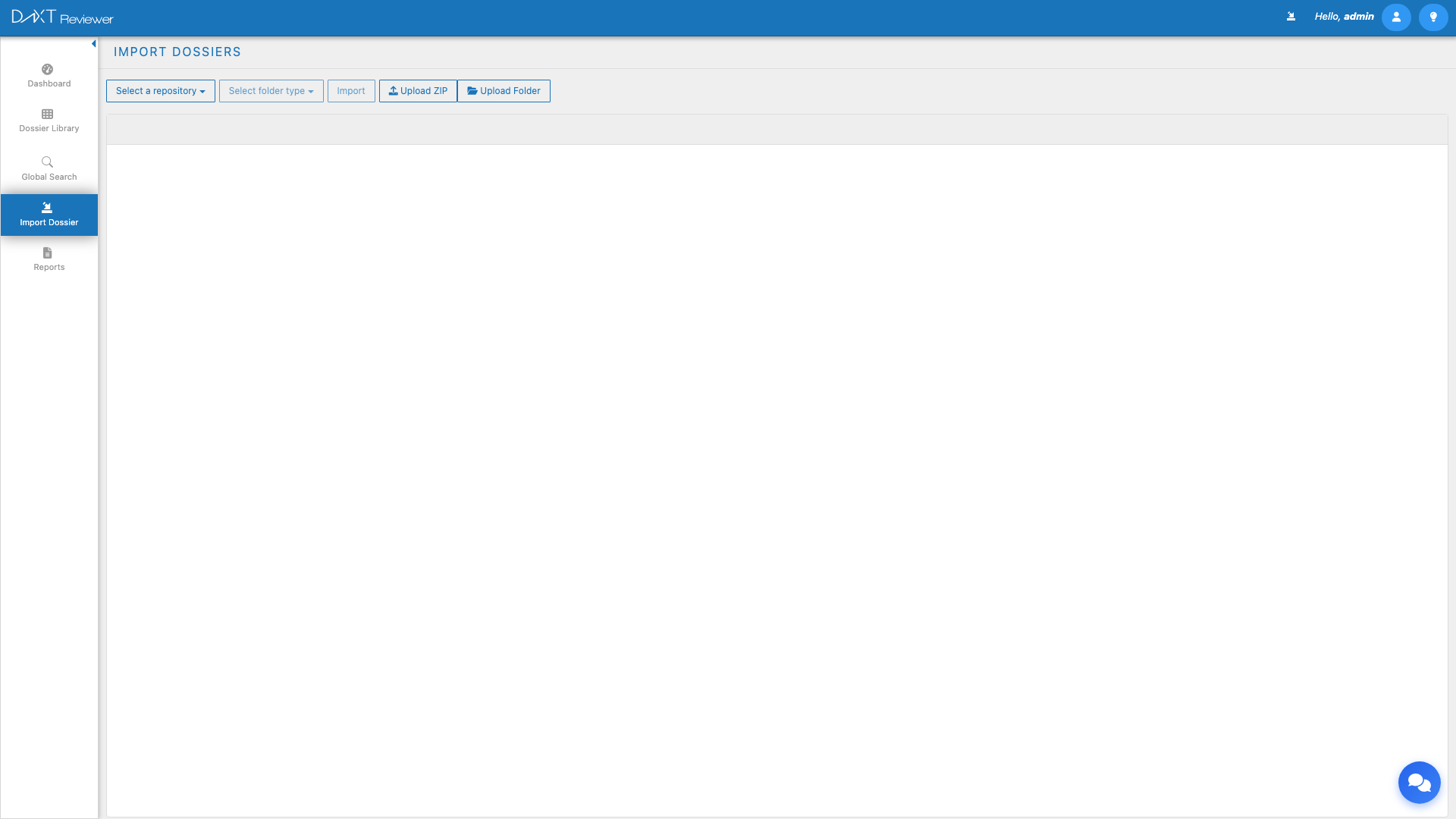
Click Import Dossier in the left sidebar to open the Import module. The import interface consists of a toolbar at the top and a folder browser area below.
Step-by-Step: Importing from a Repository #
Step 1: Select a Repository #
At the top of the Import Dossier screen, locate the Repository Selector dropdown. Click the dropdown and select the repository that contains your dossier files. The dropdown lists all repositories configured in your Reviewer instance.
Step 2: Select a Folder Type #
After selecting a repository, choose the Folder Type from the second dropdown. Two options are available:
| Folder Type | Description | When to Use |
|---|---|---|
| eCTD | Standard eCTD-structured submissions with XML backbone files | For regulatory submissions following the eCTD format (most common) |
| Folders | Generic folder structure without eCTD metadata | For non-eCTD content or legacy submissions that lack XML backbone files |
Step 3: Browse the Repository #
Once a repository and folder type are selected, the folder browser area populates with the contents of the repository. Folders are displayed as tiles (cards) for easy visual identification.
Navigation Features #
- Breadcrumb trail — Shown above the folder tiles, the breadcrumb displays your current path within the repository. Click any breadcrumb segment to navigate back to that level.
- Folder search — Use the search bar at the top of the folder browser to filter folders by name. This is especially useful in repositories with hundreds of dossier folders.
- Click to navigate — Click any folder tile to open it and view its contents (sub-folders or submission sequences).
- Infinite scroll — For repositories with large numbers of folders, the browser supports infinite scroll. As you scroll down, additional folders load automatically.
Step 4: Select Dossiers for Import #
Navigate into the dossier folder you wish to import. Depending on the repository structure, you may need to navigate through multiple levels (e.g., region → application → sequences). Select the dossier or specific submission sequences you want to import by clicking on them. Selected items are highlighted.
Step 5: Click Import #
With your dossier(s) selected, click the Import button in the toolbar. A confirmation dialog appears asking you to confirm the import. Click Proceed to begin the import process.
Step 6: Monitor Import Progress #
After clicking Proceed, an Import Progress Modal appears showing the status of each dossier being imported. The modal displays:
- Dossier name and path
- Progress bar indicating the percentage complete for each dossier
- Status messages (e.g., “Parsing XML”, “Importing documents”, “Completed”)
- Error indicators if any issues are encountered during import
You can click View Details to see detailed import logs for each dossier. When the import completes, click Close to dismiss the modal.
Importing from Veeva Vault #
If your repository is configured as a Veeva Vault type, the import process includes an additional authentication step:
- Select the Veeva repository from the Repository Selector dropdown.
- A DataStore Login Modal appears prompting you for your Veeva Vault credentials (username and password).
- Enter your Veeva credentials and click Login.
- Once authenticated, the folder browser populates with your Veeva Vault content.
- Browse, select, and import as described above.
What Happens During Import #
When you import a dossier, Reviewer performs the following operations:
- XML Parsing — Reads the eCTD backbone XML files (e.g.,
us-regional.xml,eu-regional.xml) to build the Table of Contents structure. - Document Registration — Registers all leaf-level documents (PDFs, XMLs, images) referenced in the XML backbone.
- Metadata Extraction — Extracts document metadata including titles, lifecycle operations, STF properties, and submission details.
- Index Building — Creates search indexes for the imported content to support Dossier Library searching and filtering.
- Thumbnail Generation — Generates preview thumbnails for document tiles in the library views.
Post-Import Verification #
After a successful import, verify your dossier by:
- Navigating to Left Sidebar → Dossier Library.
- Locating your newly imported dossier in the All Dossiers tab or the Recently Viewed Dossiers tab.
- Clicking the dossier to open it in the TOC viewer.
- Expanding the module tree to verify that documents are present and accessible.
Troubleshooting Import Issues #
| Issue | Possible Cause | Resolution |
|---|---|---|
| No folders appear after selecting repository | Repository path is incorrect or inaccessible | Verify the repository path in Repository settings; check file system permissions |
| Import fails with XML parsing error | Malformed or missing eCTD backbone XML | Verify the submission has valid regional XML files in the expected location |
| Import completes but dossier shows no documents | Wrong folder type selected (Folders instead of eCTD) | Delete the import and re-import with the correct folder type |
| Veeva login fails | Incorrect credentials or expired session | Verify your Veeva Vault credentials; try logging in to Veeva Vault directly to confirm access |
| Import hangs at a percentage | Network interruption or server timeout | Close the progress modal, wait a moment, then check the Dossier Library; if incomplete, re-import the dossier |
Frequently Asked Questions #
Can I import multiple dossiers at once? #
Yes. You can select multiple dossier folders in the repository browser before clicking Import. The Import Progress Modal will show individual progress bars for each dossier being imported simultaneously.
What happens if I import the same dossier twice? #
Reviewer detects duplicate imports and will either update the existing dossier with any new submission sequences or notify you that the dossier already exists. Existing annotations and links are preserved.
Can I import a single submission sequence instead of the entire dossier? #
Yes. Navigate into the dossier folder in the repository browser and select the specific sequence folder you wish to import. Reviewer will add that sequence to the existing dossier if it has already been imported, or create a new dossier entry if it has not.
How long does an import take? #
Import time depends on the size of the dossier, the number of documents, and the speed of the connection to the repository. A typical single-sequence submission with 50-100 documents imports in under a minute. Large multi-sequence dossiers with thousands of documents may take several minutes.
Do I need to re-import after new sequences are added to the repository? #
Yes. Reviewer does not automatically monitor repositories for new content. When new submission sequences are added to a repository, navigate to Import Dossier and import the new sequences. They will be added to the existing dossier in your library.
Related Articles #
- ZIP and Folder Uploads — Uploading dossiers via ZIP archives and local folders
- Repository Management — Configuring Filesystem and Veeva repositories
- Dossier Library — Managing imported dossiers
- Reviewing Submissions with TOC — Opening and navigating the TOC tree


