Overview #
The Table of Contents (TOC) view is the core review interface in DnXT Reviewer. It presents the hierarchical structure of an eCTD submission as an interactive tree, allowing you to navigate through modules, sections, and individual documents. The TOC view features a split-panel layout with the content tree on the left and a document viewer or properties panel on the right, giving you immediate access to both structure and content during your review.
Accessing the TOC View #
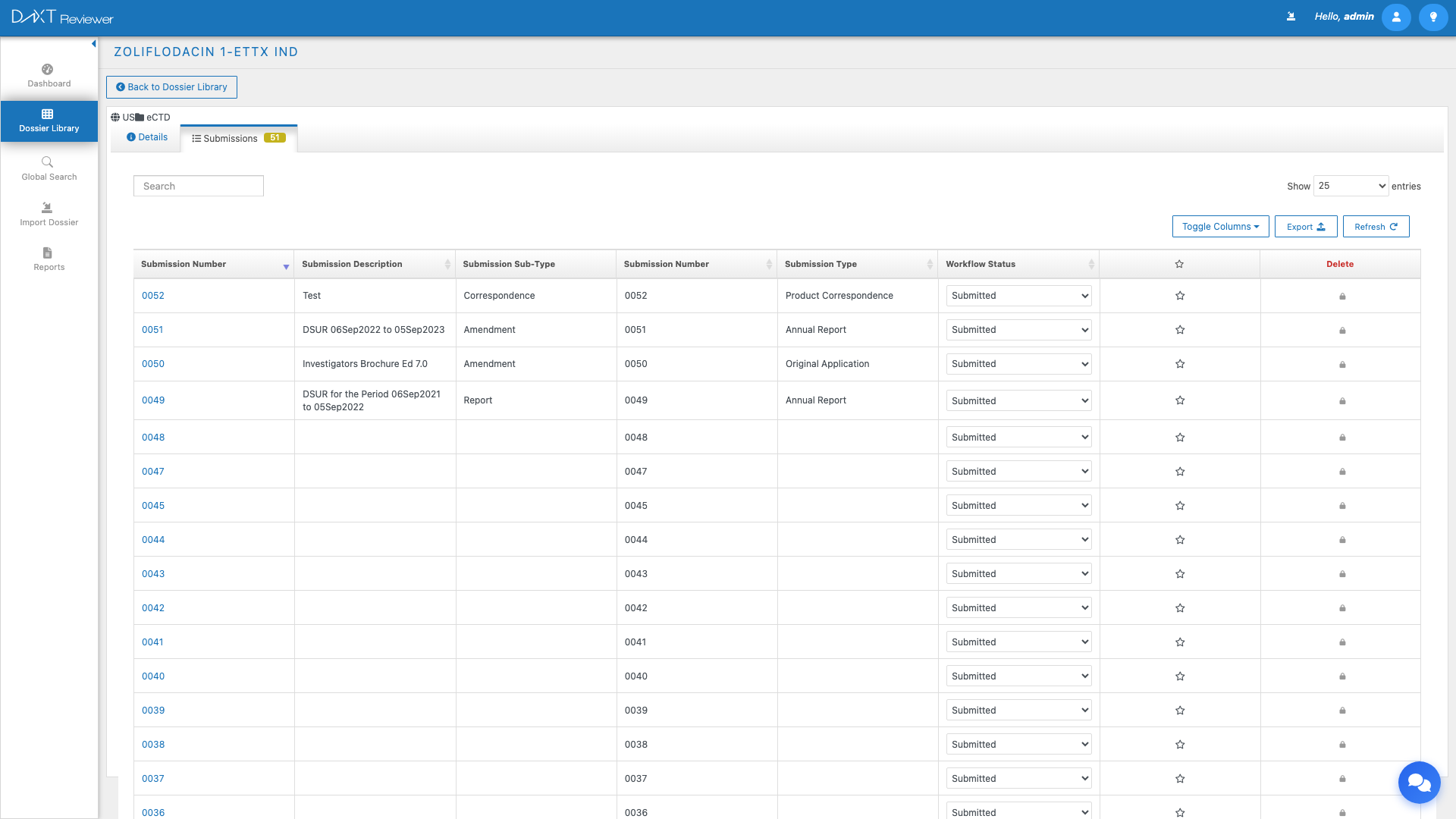
To open a submission in the TOC view:
- Navigate to Left Sidebar → Dossier Library.
- Select a dossier from any tab.
- Click (or double-click) a submission to open it.
- The TOC view loads with the submission’s content tree.
TOC Toolbar #
The toolbar at the top of the TOC view provides essential controls for navigating and configuring your review:
Dossier and Submission Selectors #
At the top of the view, two dropdown selectors allow you to switch context without returning to the Dossier Library:
- Dossier Dropdown — Select a different dossier (application) from your imported portfolio. Changing the dossier reloads the TOC with the new dossier’s content.
- Submission Dropdown — Select a specific submission sequence within the current dossier. The tree updates to show the selected submission’s content.
Lock Status #
The lock icon in the toolbar indicates whether the current submission is locked for editing by another user. A locked submission can still be viewed, but annotations and status changes may be restricted depending on your permissions.
Current vs. Cumulative Radio Buttons #
These two radio buttons control how the TOC tree displays documents:
| Mode | Description | When to Use |
|---|---|---|
| Current | Shows only the documents included in the currently selected submission sequence. This is the default mode. | When reviewing a specific submission to see exactly what was filed in that sequence |
| Cumulative | Shows all documents from all sequences up to and including the selected submission. This provides the “state of the dossier” at the point in time of this submission. | When you need to see the complete dossier as it would appear to the health authority after processing all sequences up to this point |
Additional Toolbar Controls #
- Back Button — Returns to the Dossier Library or the previous view
- Dossier Details — Opens a panel showing the dossier-level metadata (application name, number, type, region)
- Submission Details — Opens a panel showing the submission-level metadata (sequence number, type, date, description)
Left Panel: TOC Tree #
The left panel displays the eCTD content as an expandable/collapsible tree. The tree hierarchy follows the eCTD structure: Module → Section → Sub-section → Document (leaf node).
Module Toggles #
Above the tree, a set of toggle buttons allows you to quickly show or hide specific eCTD modules:
| Toggle | Modules Shown |
|---|---|
| All | All modules (M1 through M5 plus STF) |
| M1 | Module 1 — Regional Administrative Information |
| M2 | Module 2 — Common Technical Document Summaries |
| M3 | Module 3 — Quality |
| M4 | Module 4 — Nonclinical Study Reports |
| M5 | Module 5 — Clinical Study Reports |
| STF | Submission Text Files metadata |
Tree Navigation #
- Expand/Collapse nodes — Click the arrow icon next to any node to expand or collapse its children.
- Expand All / Collapse All — Use the toolbar buttons above the tree to expand or collapse the entire tree at once.
- Refresh — Click the refresh button to reload the tree data from the server.
- Click a node — Selecting a node in the tree updates the right panel to show either the node’s details or opens the document in the viewer.
Tree Node Icons #
Nodes in the tree display color-coded icons that indicate the document’s lifecycle operation:
- Green — New document (first submission of this content)
- Blue — Replaced document (supersedes a previous version)
- Red — Deleted document (marked for removal)
- Yellow — Appended document (added to an existing section)
- Gray — Section heading (no document, just a structural node)
Views Dropdown #
The Views dropdown above the tree offers three different perspectives on the TOC content:
| View | Description |
|---|---|
| Dossier View | Standard eCTD hierarchical view organized by Module → Section → Document. This is the default and most commonly used view. |
| Folder View | Displays the physical folder structure of the submission on disk, mirroring the actual file system layout. |
| File View | A flat list of all files in the submission, useful for quickly finding a specific document by file name. |
Right Panel: Node Details and Document Viewer #
The right panel of the TOC view serves dual purposes, toggled by your selection in the tree:
Node Details #
When you select a section heading (non-leaf node) in the tree, the right panel displays the node’s metadata: section title, eCTD heading number, and a summary of child nodes and documents.
Document Viewer #
When you select a leaf-level document, the right panel opens the document in the integrated viewer. The viewer supports PDF rendering with full navigation (zoom, page navigation, search), XML display with syntax highlighting, and image previews.
For detailed information about the document viewer and its features, see Document Viewing and Annotations.
Resizing the Split Panel #
You can drag the divider between the left tree and right panel to adjust their relative widths. Drag left to give more space to the document viewer, or drag right to give more space to the tree navigation.
Dossier and Submission Details Panels #
The toolbar provides access to two detail panels that show metadata about the current context:
Dossier Details #
Click the Dossier Details link in the toolbar to view:
- Application name and number
- Application type (NDA, BLA, IND, MAA, etc.)
- Region (US, EU, CA, etc.)
- Total number of submissions
- Import date and source repository
Submission Details #
Click the Submission Details link to view:
- Sequence number
- Submission type
- Submission date
- Description
- Status
- Total document count
Navigating Between Submissions #
While in the TOC view, you can navigate between different submission sequences without returning to the Dossier Library:
- Click the Submission Dropdown in the toolbar.
- Select a different sequence number from the list.
- The TOC tree reloads to show the selected submission’s content.
- The Current/Cumulative setting is preserved when switching submissions.
Performance with Large Submissions #
For submissions with hundreds or thousands of documents, the TOC tree uses lazy loading to maintain performance. Only the top-level nodes are loaded initially; child nodes load on demand as you expand sections. The module toggles help reduce visual clutter by showing only the modules you are currently reviewing.
Frequently Asked Questions #
What does the lock icon mean? #
The lock icon indicates that another user has locked the submission for exclusive editing. You can still view all content in read-only mode, but you may not be able to add or modify annotations until the lock is released.
Can I open multiple submissions side by side? #
The TOC view shows one submission at a time. However, you can use the Cumulative mode to see the combined content of multiple sequences. To compare specific submissions, open them in separate browser tabs.
Why are some tree nodes grayed out? #
Grayed-out nodes are section headings that do not contain any documents in the currently selected submission (in Current mode). Switch to Cumulative mode to see if documents exist in other sequences for those sections.
How do I return to the Dossier Library from the TOC view? #
Click the Back button in the toolbar, or click Dossier Library in the left sidebar.
Can I print the TOC tree? #
While there is no dedicated print function for the tree, you can use your browser’s print function (Ctrl+P / Cmd+P) to print the current view. For a formal TOC report, use the Chronology Report which provides a printable and exportable format.
Related Articles #
- Document Viewing and Annotations — Using the document viewer and annotation tools
- Dossier Library — Finding and selecting dossiers to review
- Chronology Report — Timeline view of submission history
- Labeling History Report — Tracking document version history


